License activation
In this section you will learn how to activate Mugnsoft Pulse, what each license tier includes, and how the license behaves when you are offline.
First launch
Pulse needs a license before it opens a project. On first launch it shows the Get Started window.
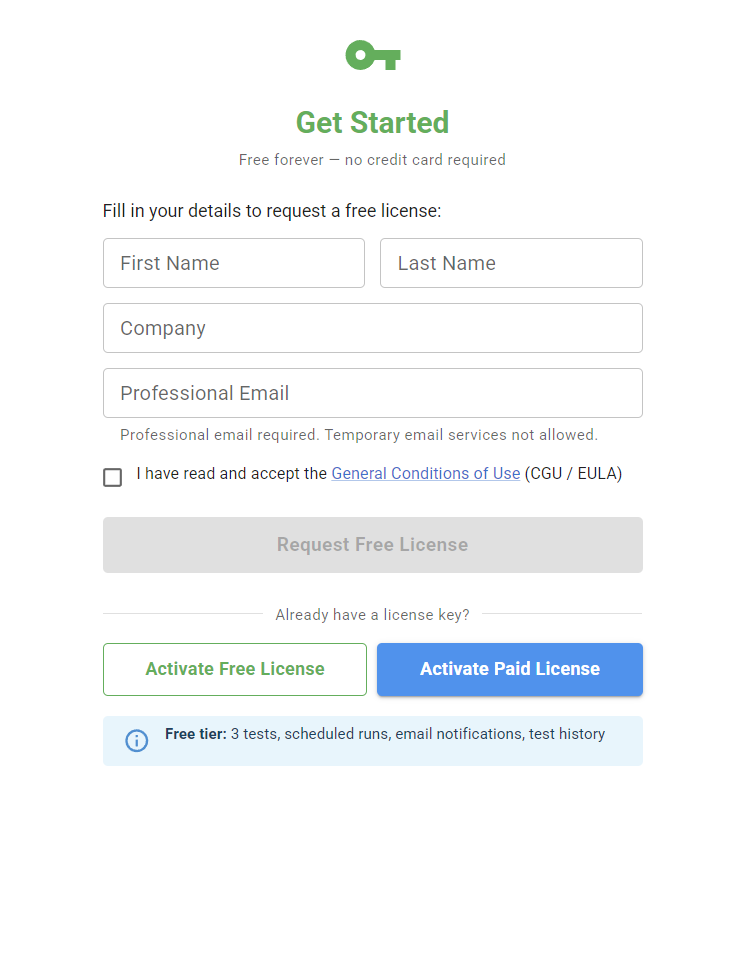
Request a free license
- Enter your first name, last name, company and professional email (temporary email services are refused)
- Accept the General Conditions of Use
- Click Request Free License
The request is reviewed by Mugnsoft, and your license key is sent to that email address once it is approved.
Activate a license key
If you already have a key, click Activate Free License or Activate Paid License. In the License Management window, enter the key, optionally your email for license recovery, and click Activate License.
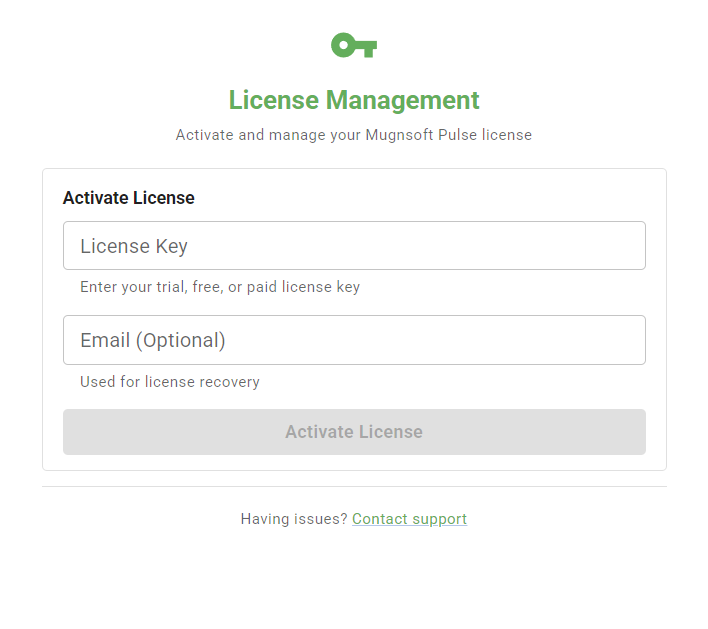
Activation binds the license to the computer: the key is checked by the Mugnsoft license server, which returns a license signed for that machine.
License tiers
Recording, playback, suites, test performance history and code export are available with every license. The free tier differs on the following points:
| Free | Paid | |
|---|---|---|
| Tests allowed | 3 | Set by your license |
| Suite scheduling | Hourly only | All intervals |
| Notifications | Email only | Email, Slack, PagerDuty, webhook |
| Auto-thresholds | Not available | Available |
| Expiry | Never | Set by your license |
The test limit also applies to scheduling: a suite containing more tests than your license allows cannot be scheduled.
The badge in the top-right corner of the project picker shows the tier currently active. Contact Mugnsoft for the exact limits of your paid license.
Offline use
- Free licenses keep working offline once activated.
- Paid licenses are checked with the license server when Pulse starts and then once a day. If the server cannot be reached, Pulse keeps working for 14 days after the last successful check. A short network or server outage never invalidates your license.
After 14 days without reaching the server, Pulse no longer starts and shows this message:
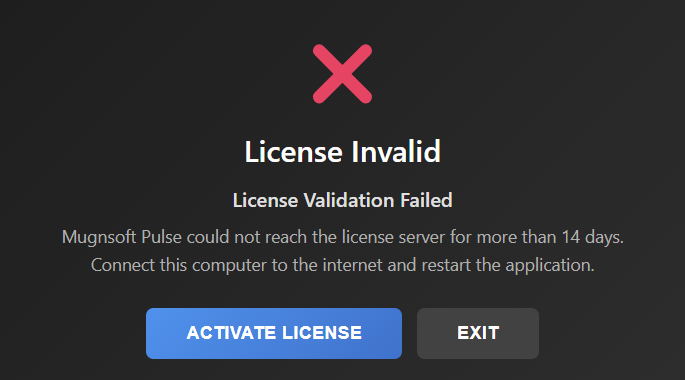
Connect the computer to the internet and restart Pulse: the license is checked again and Pulse starts normally.
Note:
See also
- Installation — download, verify and install Pulse
- Troubleshooting — license messages and what to do about them