Your profile
Every user has a profile holding what is personal to them: a picture, the language of the web interface, the password, and how the application and monitor pages open. You edit it yourself, whatever your role; nothing in it changes what other users see.
Open your profile
Click your avatar at the top right of the page, next to the sign-out icon. The header shows your username, your role (ADMIN, USER or VIEWER) and your account type (Full or Limited).
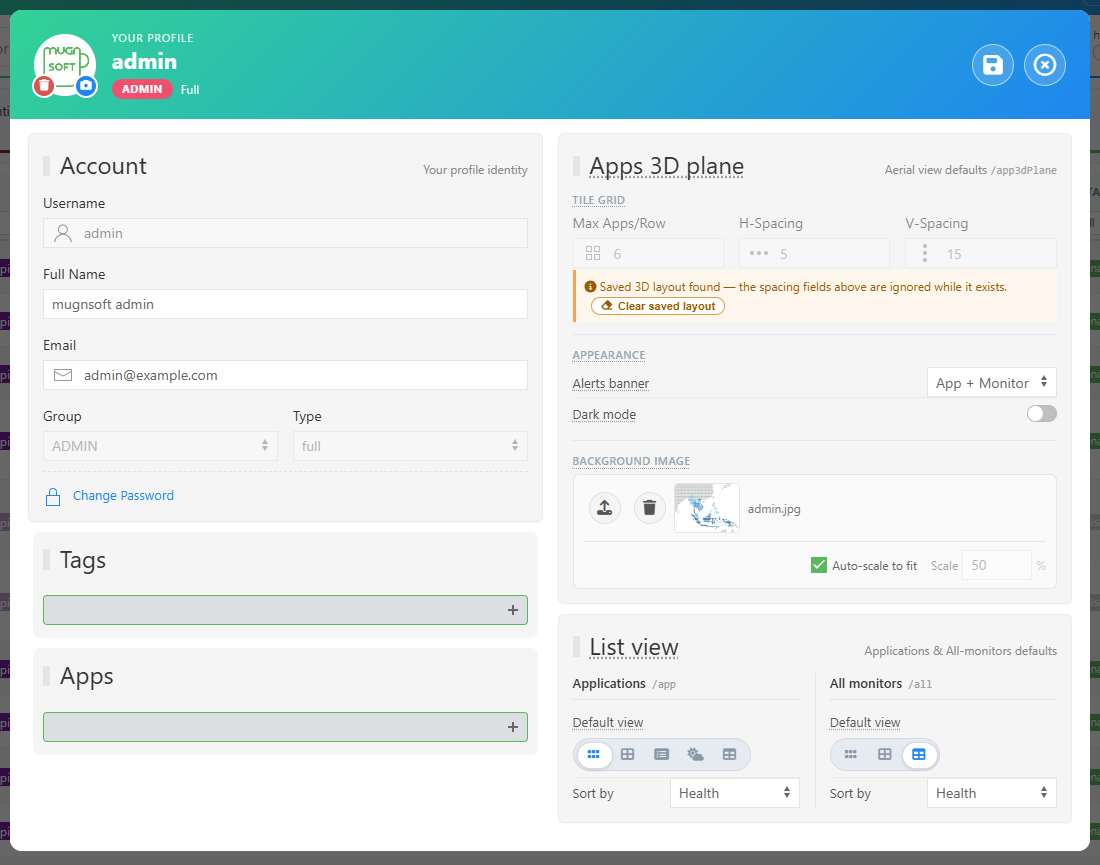
Change what you need, then click the disk icon at the top right to save. A notification confirms that your profile was updated.
Profile picture
Click the camera on the avatar and choose a PNG or JPG image. It is uploaded as soon as you pick it (no need to save) and replaces your initial in the top bar and in the users list. Once a picture is set, a trash button removes it.
Account
| Field | Description |
|---|---|
| Username | Your login. It cannot be changed from the profile. |
| Full Name | The name shown next to your actions (who created or last changed a monitor, a report, a downtime). |
| Your address, offered when a report or an alert asks for recipients. | |
| Language | The language of the web interface, see below. |
| Change Password | Opens the two password fields, see Change password. Not shown for an account that signs in through SSO. |
Language
The interface is available in English, Français and Español. Pick yours in the Language list and save: the page reloads in that language.
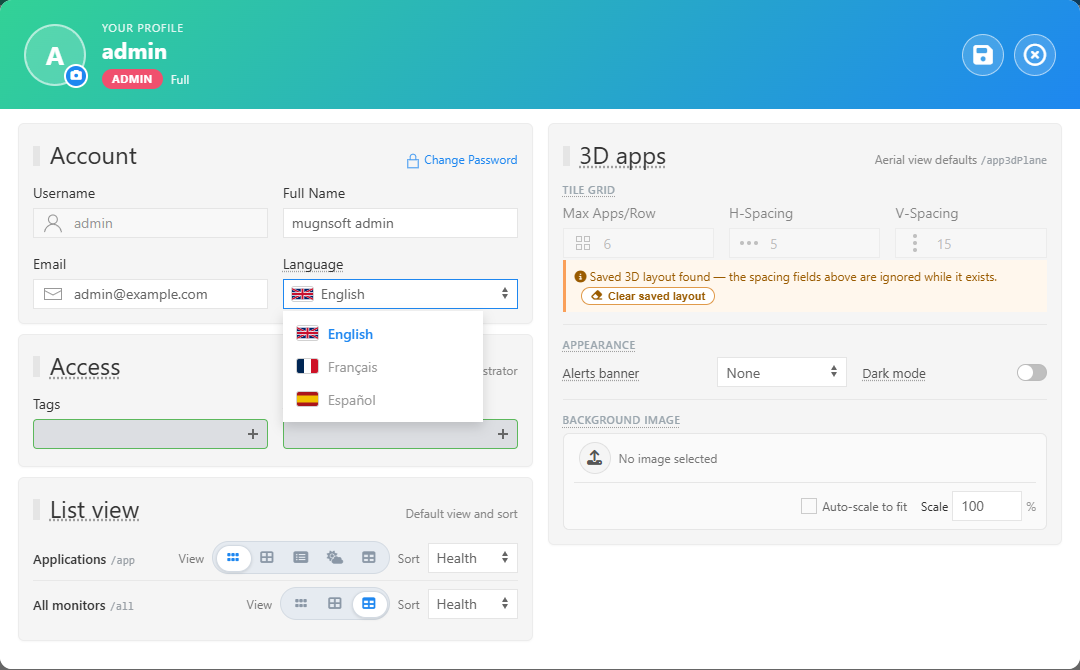
- The choice is stored on your user, not in the browser: you get your language on every device you sign in from, and every other user keeps their own.
- It covers the labels, menus, tooltips, help texts, notifications, dialogs and tables.
- Your data is never translated: monitor, application and component names, tags, descriptions and collected values are shown as they were entered.
- A new report starts in your language; each report then keeps its own language setting, see Language and format.
- An administrator can also set the language of another user from the users page.
Access
Tags and Apps show what you are allowed to see. They are set by an administrator and are read-only here; see Access perimeter.
List view
How the Applications (/app) and All monitors (/all) pages open for you: the default view (compact, standard, detailed, weather or table) and the default sort (health or name). The views are described in List view.
3D apps
Your defaults for the aerial 3D dashboard: tiles per row and spacing, the alerts banner, dark mode and a background image. The parameters are described in 3D plane view.