Import, export and repository snapshot
The Import/Export page lets you bulk-import objects from a CSV file, export any object type to CSV, and commit a point-in-time backup of every monitor and application to your version-control repositories.
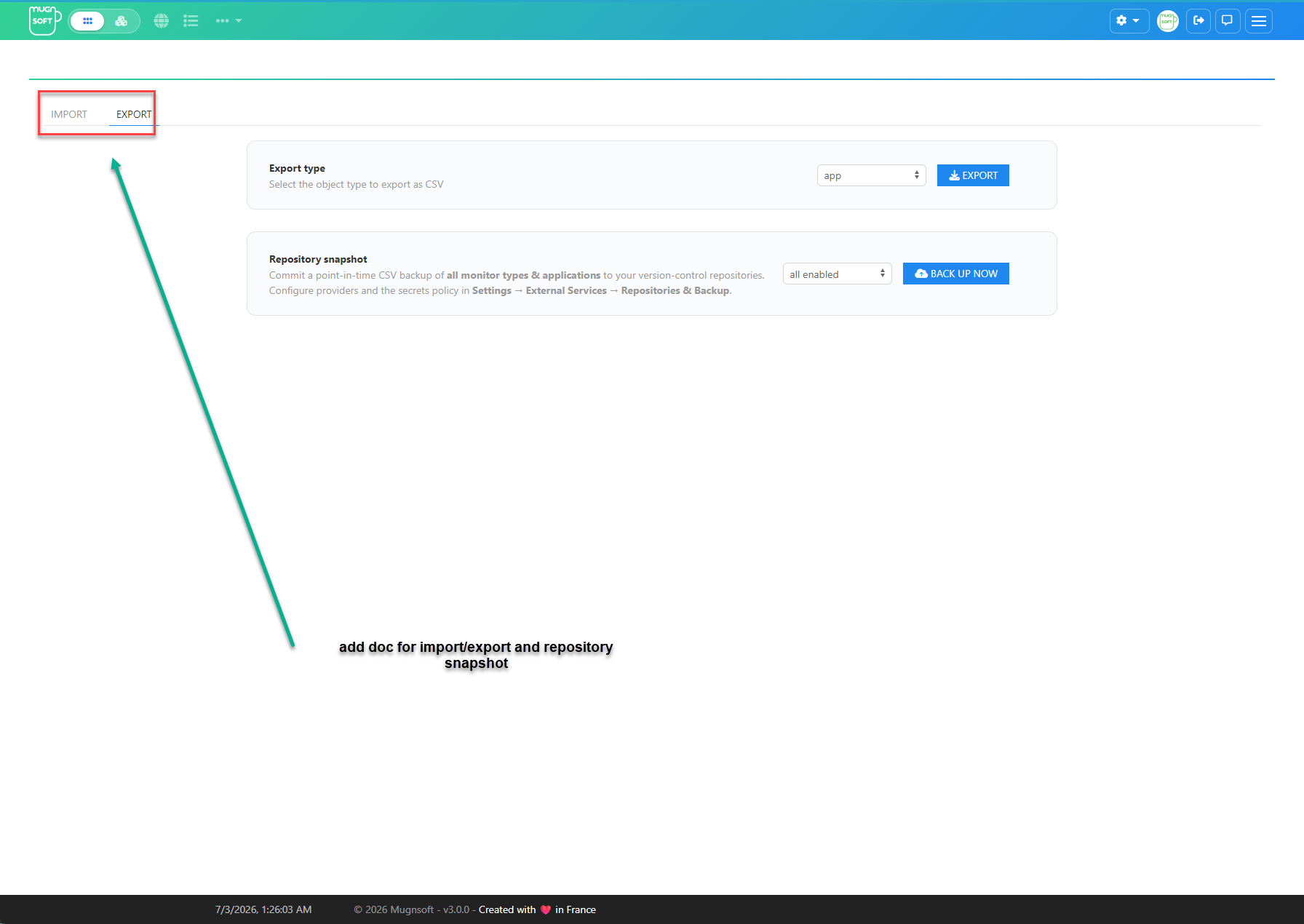
The page is split into two tabs: Import and Export. The Export tab also hosts the Repository snapshot action.
Note:
Import
Import objects in bulk from a single CSV file.
- Open the Import tab.
- Drag & drop a CSV file onto the drop zone, or click browse to pick one.
- Upload starts automatically; a progress bar and status message report the result.
The object type (api, db, nslookup, ping, tcp, sys, snmp, wmi, url, websocket, app, host, snmp device, wmi device, container host, report, downtime, user) is detected from the file content, so you do not select a type when importing.
CSV format:
- Field separator is a semicolon (
;). - Lines starting with
#are treated as comments and ignored. Every export starts with comment lines that name and describe each column. - The file must contain at least one data row.
- Monitor exports (url, api, tcp, udp, ping, nslookup, sys, db, websocket) end with the monitor’s prediction settings:
predEnabled;predCount;predDataName;predAlert. A file exported before these columns existed still imports, with prediction off. - url and api exports then carry the status priority (
statusPriority). - Every monitor export ends with the SIGNL4 settings:
s4WH;s4OnF;s4OnSC. The application export ends with the logo (imageData, see below) and the same three SIGNL4 columns.
A file exported by an older version still imports: a column it does not have takes its default on a new object, and an existing object keeps its current value.
Tip:
Updating existing objects
A line whose object already exists updates it. Some values are protected:
| Object | Kept from the existing object |
|---|---|
| Monitor | Its current thresholds (critical, major, minor, and the jitter thresholds), so an import never undoes auto-thresholds or your tuning. Columns the file leaves empty (status priority, SIGNL4) also keep their current value. |
| Application | Its SIGNL4 settings, when the line comes from an export without the SIGNL4 columns. |
| User | Its password. The admin running the import also keeps its own group and enabled state, so it cannot lock itself out. |
| Downtime | Everything, while the downtime is running: it is left unchanged. |
Import result
The status message lists one result per line: what was created or updated, and for each rejected line the line number of the file and the reason (wrong number of fields, an unclosed quote, an invalid value…). A bad line no longer stops the import: the other lines are imported. Fix the reported lines and import the file again.
Export
Export a single object type to CSV.
- Open the Export tab.
- In Export type, select the object type (app, api, db, nslookup, ping, sys, tcp, url, websocket, snmp device, wmi device, container host, host, report, downtime, user).
- Click Export. The CSV is generated and downloaded as a zip archive.
A container host line carries the host’s connection, discovery scope, notification settings and its workload selection as JSON. Importing it creates the host on its probes and recreates its workload monitors; workloads have no lines of their own. A host whose name already exists is skipped.
An app line carries the application’s logo in the imageData column, as a base64 PNG or JPEG data URI, so a restore on another installation shows the same logos. Only real PNG/JPEG images are accepted at import.
Reports, downtimes and users
| Type | What a line carries | At import |
|---|---|---|
| report | The report definition: type, scope (monitors, applications, tags), schedule, recipients, format, state. | A report switched on is scheduled at once. |
| downtime | The downtime: type (custom or regular), schedule, applications and monitors in scope, state. | A downtime switched on is scheduled at once; a running one is left unchanged. |
| user | The account (group, type, e-mail, language, tags, applications…) and the user’s own view settings: both 3D layouts and cameras, the /app and /all view preferences, and the 3D background and profile pictures as data URIs. | A new local user needs its bcrypt password hash, in the password column. An existing user keeps its password. |
Repository snapshot
The Repository snapshot card commits a point-in-time CSV backup of all monitor types and applications to your configured Git repositories, in one batch commit. Use it to version-control your monitoring inventory or to keep an off-box copy for disaster recovery.
- In Repository snapshot, choose the target:
- all enabled — commit to every configured and enabled provider.
- GitLab — commit to GitLab only.
- GitHub — commit to GitHub only.
- Click Back up now.
The snapshot writes one CSV per monitor type plus an applications CSV and a manifest.json, under a monitors/ and applications/ folder in the repository.
Note:
Configure the Git repository
Providers and the secrets policy are configured in Settings → External Services → Repositories & Backup. Two backends are available: GitLab and GitHub. Configure one or both.
GitLab
| Field | Description |
|---|---|
| GitLab Namespace | Group/namespace that owns the repository. Required so monitor scripts are saved correctly. |
| GitLab Token | Personal or project access token with repository write scope. |
| Gitlab base URL | API base URL, e.g. https://my-gitlab.com/api/v4. |
| Gitlab project name | Target project (repository) name. |
| Gitlab branch | Branch to commit to, e.g. dev. |
Use the test (bolt) icon to verify the connection. The synchronize icon reconciles the GitLab repository with the current Mugnsoft monitor list and deletes files that no longer belong to any monitor.
GitHub
| Field | Description |
|---|---|
| GitHub Owner | User or organization that owns the backup repository. |
| GitHub Token | Personal access token with repository write scope. |
| GitHub repository name | Target repository, e.g. mugnsoft-monitors. |
| GitHub branch | Branch to commit to, e.g. main. |
| GitHub base URL (Enterprise) | Leave empty for github.com; set your GitHub Enterprise base URL (e.g. https://github.mycorp.com) otherwise. |
Use the test (bolt) icon to verify the connection and the synchronize icon to reconcile the repository with the current monitor list.
Include secrets in CSV backups
Each provider panel has an Include secrets in CSV backups toggle. It is a shared policy that applies to both GitLab and GitHub.
Note:
After filling in the fields, enable the provider and save the settings. The provider then becomes selectable in the Repository snapshot target list.