Tutorial: your first forecast
This tutorial takes one URL monitor from nothing to a forecast, a breach risk and a predictive alert. Allow about twenty minutes, most of it for installing the service: a model trains in seconds.
Before you start
| You need | Detail |
|---|---|
| A Webserver | ADMIN, logged in as an administrator. |
| An Integrator writing to InfluxDB | InfluxDB v2 or v3, already receiving the monitor’s checks. See Integration with InfluxDB. |
| Enough history | A model needs at least 90 successful checks. Forecast alerts need more: about 1,000 checks that include some past threshold breaches (a monitor checked every minute gives 1,440 checks a day). With less, forecasts and anomaly alerts still work, and the forecast says why it raises no forecast alert. |
| A host for the prediction service | Linux (Docker or binaries, glibc 2.28+) or Windows. No GPU: a model trains in seconds, one at a time, so two CPU cores and 1 GB of memory are enough. |
| Network | The Webserver reaches the service (HTTPS, port 8000 here), and the service reaches InfluxDB. In a Webserver cluster, every node must reach the service. |
| A monitor with thresholds | Any URL, API, TCP, UDP, Ping, DNS, Database, System or WebSocket monitor whose minor / major / critical thresholds are set: the breach risk is measured against them. |
| A notification channel (step 7) | The monitor has a channel switched on for status change (email, Slack, Teams, PagerDuty or script), and the Integrator has that channel enabled. |
| Versions | Webserver, probes and prediction service of the same release (prediction service 1.4 or later). |
The commands use these example values. Replace them with yours.
| Value | Example |
|---|---|
| Prediction service | https://prediction.example.com:8000 |
| InfluxDB (v2) | http://influxdb.example.com:8086, org mugnsoft, bucket monitoring |
| Monitor | URL monitor shop on probe probe1 |
Step 1: configure the prediction service
The service runs as a Docker container, or from the binaries on Linux or Windows. Pick yours: the choice applies to the whole page.
The service reads monitor history from its own InfluxDB connection: the Webserver never sends it credentials.
Docker
Create a file prediction.env:
# InfluxDB the Integrator writes to
INFLUXDB_URL=http://influxdb.example.com:8086
INFLUXDB_TOKEN=<read-only InfluxDB token>
INFLUXDB_ORG=mugnsoft
INFLUXDB_BUCKET=monitoring
PREDICTION_TSDB=influxdb            # influxdb3 for InfluxDB v3 (then INFLUXDB_DATABASE)

# Only requests signed by your Webserver are accepted (key copied in step 3)
PREDICTION_JWT_PUBLIC_KEY=/sec/webserver_prediction.pub
PREDICTION_REQUIRE_JWT=true

# TLS
PREDICTION_SSL_KEY=/sec/private.key
PREDICTION_SSL_CERT=/sec/certificate.crt
Put the TLS key and certificate in a sec folder next to it. The paths above are the ones inside the container. A self-signed certificate is fine: you will pin it in step 3.
Linux
The service will live in its own folder, /opt/mugnsoft/prediction here (sudo mkdir -p /opt/mugnsoft/prediction/sec). Create a file .env there:
# InfluxDB the Integrator writes to
INFLUXDB_URL=http://influxdb.example.com:8086
INFLUXDB_TOKEN=<read-only InfluxDB token>
INFLUXDB_ORG=mugnsoft
INFLUXDB_BUCKET=monitoring
PREDICTION_TSDB=influxdb            # influxdb3 for InfluxDB v3 (then INFLUXDB_DATABASE)

# Only requests signed by your Webserver are accepted (key copied in step 3)
PREDICTION_JWT_PUBLIC_KEY=sec/webserver_prediction.pub
PREDICTION_REQUIRE_JWT=true

# TLS
PREDICTION_SSL_KEY=sec/private.key
PREDICTION_SSL_CERT=sec/certificate.crt

# Models and training state
PREDICTION_MODEL_DIR=models
Relative paths start from the service folder. Put the TLS key and certificate in its sec subfolder. A self-signed certificate is fine: you will pin it in step 3.
The .env file holds the InfluxDB token: step 2 makes it readable by the service account only.
Windows
The service will live in its own folder, C:\mugnsoft\prediction here. Create a file .env there:
# InfluxDB the Integrator writes to
INFLUXDB_URL=http://influxdb.example.com:8086
INFLUXDB_TOKEN=<read-only InfluxDB token>
INFLUXDB_ORG=mugnsoft
INFLUXDB_BUCKET=monitoring
PREDICTION_TSDB=influxdb            # influxdb3 for InfluxDB v3 (then INFLUXDB_DATABASE)

# Only requests signed by your Webserver are accepted (key copied in step 3)
PREDICTION_JWT_PUBLIC_KEY=sec/webserver_prediction.pub
PREDICTION_REQUIRE_JWT=true

# TLS
PREDICTION_SSL_KEY=sec/private.key
PREDICTION_SSL_CERT=sec/certificate.crt

# Models and training state
PREDICTION_MODEL_DIR=models
Relative paths start from the service folder. Put the TLS key and certificate in its sec subfolder. A self-signed certificate is fine: you will pin it in step 3.
The .env file holds the InfluxDB token: let only the account that runs the service (step 2) and administrators read the folder.
Step 2: start the service
Docker
The image is built from the prediction service package with docker build -t mugnsoft/prediction:1.4 .. Then:
docker run -d --name prediction --restart unless-stopped -p 8000:8000 \
  --env-file prediction.env \
  -v prediction-models:/models \
  -v "$PWD/sec":/sec:ro \
  mugnsoft/prediction:1.4
Models and the training state live in the prediction-models volume: they survive a new image.
Linux
The binaries run on x86-64 Linux with glibc 2.28 or later: RHEL, Alma or Rocky 8+, Debian 10+, Ubuntu 20.04+. Nothing else to install.
Download. Get the Predictive Analytics archive for Linux from the download page. The page also gives the commands that check its GPG signature.
Extract it into the service folder, next to the .env file of step 1, and give the folder to a dedicated account. The folder then holds api, its _internal folder, .env and sec.
sudo tar -xzf mugnsoft-prediction-1.4.0.linux-amd64.tar.gz -C /opt/mugnsoft/prediction
sudo useradd --system --home-dir /opt/mugnsoft/prediction --shell /usr/sbin/nologin mugnsoft-prediction
sudo chown -R mugnsoft-prediction: /opt/mugnsoft/prediction
sudo chmod 600 /opt/mugnsoft/prediction/.env
Try it in a terminal. Always start it from its folder: that is where it reads .env. Stop it with Ctrl+C once step 3 passes.
cd /opt/mugnsoft/prediction
sudo -u mugnsoft-prediction ./api
Run it as a service with systemd, and open the port if a firewall is on:
sudo tee /etc/systemd/system/mugnsoft-prediction.service >/dev/null <<'EOF'
[Unit]
Description=Mugnsoft prediction service
After=network-online.target
Wants=network-online.target

[Service]
User=mugnsoft-prediction
WorkingDirectory=/opt/mugnsoft/prediction
ExecStart=/opt/mugnsoft/prediction/api
Restart=on-failure
RestartSec=10
NoNewPrivileges=true
ProtectSystem=full
PrivateTmp=true

[Install]
WantedBy=multi-user.target
EOF
sudo systemctl daemon-reload
sudo systemctl enable --now mugnsoft-prediction

# firewalld (RHEL family)
sudo firewall-cmd --permanent --add-port=8000/tcp && sudo firewall-cmd --reload
# or ufw (Debian / Ubuntu)
sudo ufw allow 8000/tcp
Its log: journalctl -u mugnsoft-prediction -f.
Upgrade: sudo systemctl stop mugnsoft-prediction, delete api and _internal, extract the new archive, chown the folder again, start the service. .env, sec and models stay.
Windows
Download. Get the Predictive Analytics archive for Windows from the download page. The page also gives the commands that check its GPG signature.
Extract it into the service folder, next to the .env file of step 1 (PowerShell). The folder then holds api.exe, its _internal folder, .env and sec.
Expand-Archive mugnsoft-prediction-1.4.0.windows-amd64.zip -DestinationPath C:\mugnsoft\prediction
Try it in a console. Always start it from its folder: that is where it reads .env. Stop it with Ctrl+C once step 3 passes.
cd C:\mugnsoft\prediction
.\api.exe
Run it at start-up, without an open session: register a start-up task and open the port, in an administrator PowerShell.
$dir = "C:\mugnsoft\prediction"
$action   = New-ScheduledTaskAction -Execute "$dir\api.exe" -WorkingDirectory $dir
$trigger  = New-ScheduledTaskTrigger -AtStartup
# no 72-hour time limit, restart when it stops on an error
$settings = New-ScheduledTaskSettingsSet -ExecutionTimeLimit ([TimeSpan]::Zero) `
              -RestartCount 999 -RestartInterval (New-TimeSpan -Minutes 1)
Register-ScheduledTask -TaskName "Mugnsoft prediction" -Action $action -Trigger $trigger `
  -Settings $settings -User "NT AUTHORITY\SYSTEM" -RunLevel Highest
Start-ScheduledTask -TaskName "Mugnsoft prediction"

New-NetFirewallRule -DisplayName "Mugnsoft prediction" -Direction Inbound `
  -Protocol TCP -LocalPort 8000 -Action Allow
Upgrade: stop the task, delete api.exe and _internal, extract the new archive, start the task. .env, sec and models stay.
Check it answers (curl.exe in Windows PowerShell):
curl -k https://prediction.example.com:8000/health
"backend_configured": true means the service found its InfluxDB settings. The public key file does not exist yet: that is the next step.
Step 3: connect the Webserver
- Open Settings, the Webserver’s settings window, tab Predictive Analytics.
- In Prediction API URL, enter
https://prediction.example.com:8000. - Click Fetch certificate. The fingerprint of the service’s certificate fills the field below it. Compare it with the certificate on the service host, then keep it: the Webserver will now accept that certificate and no other.
- Click Copy under Signing key (public) and save the text in the file the service expects (
sec/webserver_prediction.pubhere). The service reads the file again when it changes: no restart needed. - Click Save prediction settings. Test connection then runs on its own and ticks four steps: Service URL set, Service reachable, Signature of this webserver accepted and The service reads InfluxDB. A step that fails says what to fix.
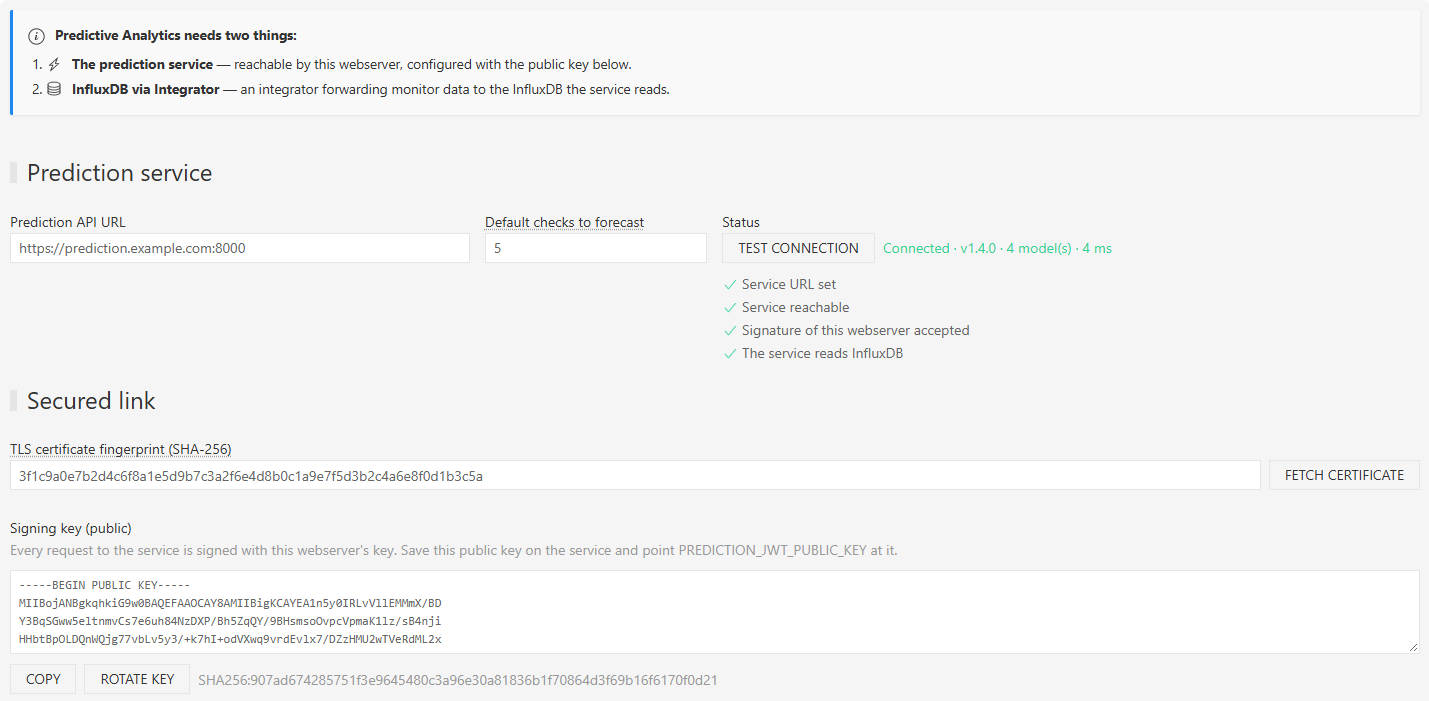
The status should read Connected, with the service version and its number of models. If Signature of this webserver accepted fails, the public key file on the service is missing or outdated: redo point 4. Edited a field without saving? The tab says Unsaved changes: the test always uses the saved settings.
Step 4: choose training and alerts
Lower in the same tab:
- Retrain each model: keep Every week.
- Send predictive alerts: tick it, and keep Alert on = Forecast breach and anomaly.

Click Save prediction settings again.
Step 5: enable prediction on a monitor
- Open the monitor’s details (here
shoponprobe1), tab Prediction. - Switch Enable on. Leave Checks to forecast empty to use the default (5 checks).
- Keep Forecast alerts on Default: the monitor then follows the settings of step 4. On or Off overrides them for this monitor only.
- Save the monitor. The Prediction status box of the same tab then follows the model and, once it is trained, the forecasts.

That is all: nothing to run by hand. Within ten minutes at most the Webserver sees the monitor, finds it has no model yet and asks the service to train one.
Step 6: watch the first forecast
Back in Settings > Predictive Analytics, the Forecasts table lists every monitor with prediction enabled. Click Run predictions now to skip the wait. The table refreshes on its own while a model waits for training, and Filter monitors finds one monitor among many.
The Model column goes Queued → Training → Ready, a few seconds per monitor. Then the Forecast column shows the predicted status and its breach risk: the probability that one of the next checks reaches a threshold. Hover it to see how often such warnings were right on this monitor’s history. Anomaly shows the score of the latest check.

Here the model is ready, and the risk that one of the next 5 checks reaches the MINOR threshold is 4 %: the predicted status is OK. It turns MINOR when that risk passes the level this monitor’s history showed to be worth a warning.
On some monitors the line reads No forecast alert, followed by the reason (no threshold set, not enough history yet, breaches come without warning…). That is not an error: the forecast still runs and anomaly alerts still work, but the history does not announce this monitor’s breaches well enough for a warning to be trusted. See Breach risk.
Step 7: receive a predictive alert
A predictive alert is sent once the same predicted status is seen on two consecutive forecasts, and again when it clears. It goes to the channels the monitor uses on status change (email, Slack, Teams, PagerDuty or script), through the Integrators, and it is labelled as a forecast:
| Alert | Example message |
|---|---|
| Forecast breach | Forecast: url ‘shop’ on probe1 has a 62% risk of reaching MINOR (threshold 130) within the next 5 checks. On this monitor’s history, such warnings were right 58% of the time and came before 30% of its breaches. The monitor’s current status is unchanged. |
| Recovery | Forecast: the risk that url ‘shop’ on probe1 reaches a threshold within the next 5 checks is low again. |
| Anomaly | Anomaly: the latest response time of url ‘shop’ on probe1 is unusual for this monitor (4.2 standard deviations from the forecast). |
Forecast alerts are only sent for monitors whose breach risk proved reliable on their history; anomaly alerts are sent for every monitor.
No alert arrives? Check that the monitor has at least one channel switched on for status change, that the Integrator has that channel enabled too, and that the monitor’s Forecast alerts setting is not Off.
Next
- How it works: what the model learns, when it is retrained, what counts as an anomaly.
- Configuration: every setting, key rotation, the API.
- Troubleshooting.