Email alerts are sent by the Integrator, through the SMTP server you declare once in the Webserver settings. Recipients are set on the Integrator (default) or on each monitor.
Step 1: declare the SMTP server
Open gear menu → components, right-click the webserver node and choose edit server. In the External services tab, click the SMTP tile. The Configure SMTP link shown in a monitor’s Actions tab opens the same place. (All fields: Webserver settings → SMTP.)
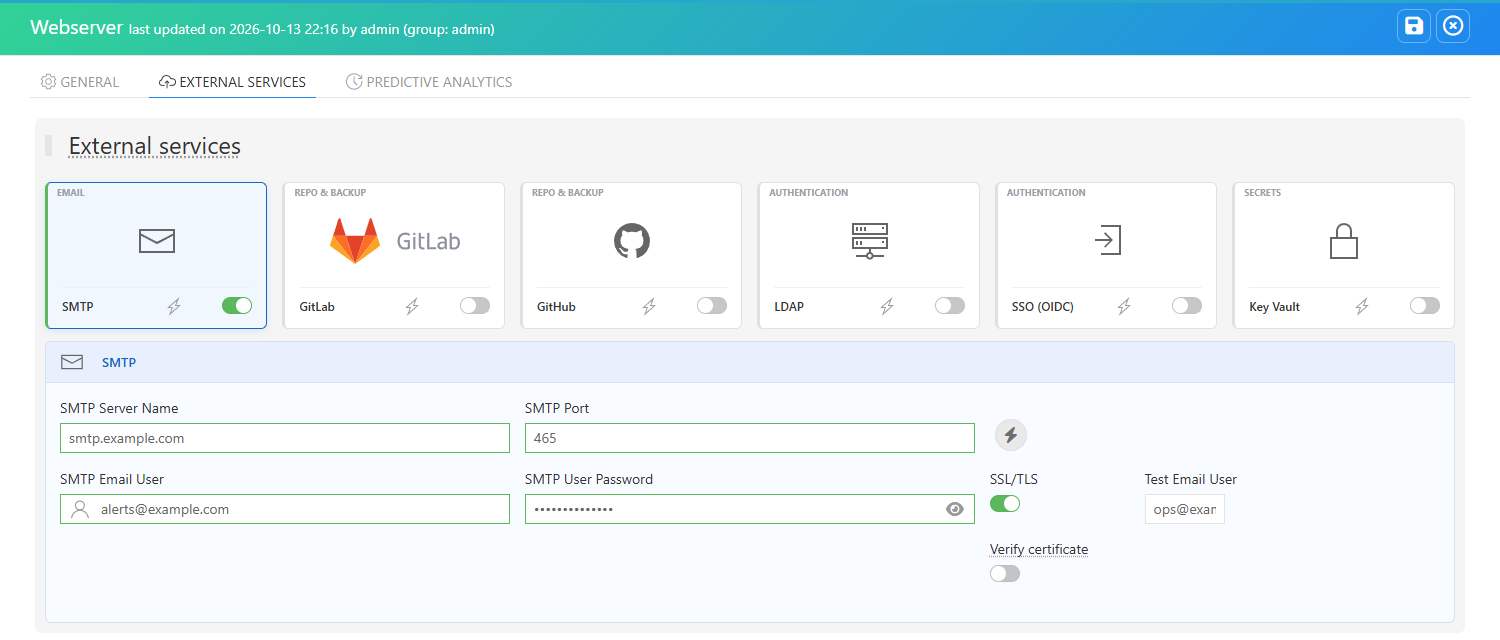
| Field | What to enter |
|---|---|
| SMTP Server Name | Host name of your mail server or relay, for example smtp.example.com. |
| SMTP Port | 465 for implicit TLS, 587 for STARTTLS, 25 for an internal relay. |
| SMTP Email User | The account used to log in. Alerts are sent from this address. |
| SMTP User Password | Its password (an app password with Microsoft 365 or Gmail accounts that use MFA). Stored encrypted. |
| SSL/TLS | On: the connection must be encrypted (STARTTLS is required on 587). Leave it on unless your relay is plain-text only. |
| Verify certificate | On: the server certificate must be valid for its name and signed by a trusted CA. Off by default, so self-signed internal relays keep working: the traffic is still encrypted. Private CAs can be added to config/ssl/certificates on each component. |
| Test Email User | The address that receives the test email. |
Switch the tile on and save with the disk icon. The SMTP settings are then pushed to every enabled Integrator (and Sentinel agent). The Integrator’s edit form shows what it received, just above its Notifications block: SMTP enabled smtp.example.com port 465.
Step 2: choose the recipients
- For every monitor of an Integrator: Integrator → Notifications → Email, switch On fail and/or On change on and fill in Default recipients.
- For one monitor: its Actions tab → Email card → Email Recipients. Leave it empty to use the Integrator’s default.
Recipients are a comma-separated list: ops@example.com, oncall@example.com.
Then switch on the trigger(s) on the monitor’s Email card — see ON FAIL and ON CHANGE.
What is sent
- Subject: the alert headline, for example
[CRITICAL] web-shop · HTTP 503 · probe-paris. - Body: an HTML message (with a plain-text alternative): status banner in the status colour, monitor, type, status and duration, target, probe, check time, the probe’s message and a Locate in 3D view link.
- All the alerts of a monitor share one thread in Outlook, Apple Mail and Thunderbird.
Test it
- The SMTP account: in the SMTP tile, fill in Test Email User and click ⚡. The Webserver sends a test email; the result is shown at the bottom right. This proves the server, port, credentials and TLS settings, from the Webserver’s host.
- The Integrator’s path: the Integrator connects to the mail server from its own host. In the Integrator’s Notifications block, click ⚡ on the Email card: the Integrator sends a
[TEST] Mugnsoft notification testemail to the recipients in the field (or its saved default) and reports the SMTP error if any. If it fails while step 1 works, check that the Integrator’s host can reach the SMTP port (Test-NetConnection smtp.example.com -Port 465on Windows,nc -vz smtp.example.com 465on Linux). - End to end: run the test monitor and wait for the email.
Troubleshooting
| Symptom | Cause and action |
|---|---|
| ⚡ test fails | Wrong host, port or credentials, or the port is blocked. Check the Webserver log for the SMTP error. |
| Test works, alerts never arrive | Check the four switches (Integrator + monitor, On fail/On change) and that the Integrator form shows SMTP enabled. Then see the Integrator log. |
x509: certificate signed by unknown authority in the Integrator log |
Verify certificate is on and the relay uses a private CA: add the CA to config/ssl/certificates, or switch verification off. |
| The email card says Email notifications are unavailable | SMTP is not configured on the Webserver and the monitor is not routed through an Integrator that has SMTP. |
| Alerts land in spam | Send from an address of a domain your mail server is allowed to send for (SPF/DKIM). |
More in Troubleshooting.