Alert notifications
When a monitor fails or changes status, the Integrator tells people: by email, in Slack or Microsoft Teams, in PagerDuty or SIGNL4, or by running a script of yours. This section shows how to set up each channel, how to test it, and exactly when an alert is sent.
How an alert reaches someone
Every check result travels from the probe to its Integrator. The Integrator sends a notification on a channel only when all of the following are true:
| # | Condition | Where it is set |
|---|---|---|
| 1 | The channel’s trigger (On fail or On change) is switched on on the Integrator | Integrator → General tab → Notifications |
| 2 | The same trigger is switched on on the monitor | Monitor → Actions tab |
| 3 | The channel has a destination: the monitor’s own, or else the Integrator’s default | Monitor → Actions, or Integrator → Notifications |
| 4 | The trigger’s rule is met for this check — see ON FAIL and ON CHANGE | Monitor → Actions (the On fail rule bar) |
| 5 | Email only: SMTP is configured and switched on in the Webserver settings | Webserver settings → External services → SMTP |
on the Integrator AND on the monitor] C -- yes --> H[Channels whose On change is on
on the Integrator AND on the monitor] G --> D[Destination: monitor's own,
else Integrator default] H --> D D --> S[Email / Slack / Teams / PagerDuty / SIGNL4 / script]
If one condition is missing, nothing is sent and no error is shown: a missing alert looks exactly like a quiet estate. The monitor form tells you when this happens — see What the monitor form tells you.
Where to configure
On the Integrator: the switches and the default destinations
Open gear menu → components, right-click the Integrator and choose edit server. The Notifications block is at the bottom of the General tab.
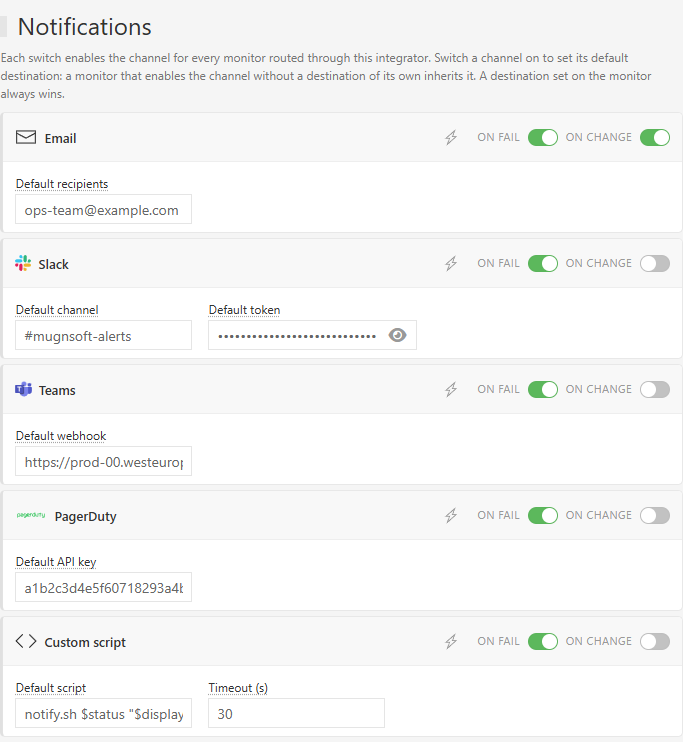
- The On fail and On change switches enable the trigger for every monitor routed through this Integrator. A channel switched off here is off for all of them.
- The fields are the channel’s default destination. A monitor that switches the channel on and leaves its own destination blank uses it. A destination set on the monitor always wins, field by field (a monitor can name its own Slack channel and still post with the Integrator’s token).
- A default says where an alert goes, never whether it is sent: the monitor still has to switch the channel on.
- The ⚡ icon on each card sends a test from the Integrator’s own host, with the values shown (blank fields use the saved defaults), and reports the provider’s answer. It appears once the Integrator is registered.
Save with the disk icon. The Integrator applies the new settings immediately, without a restart.
On the monitor: the triggers and the rule
Edit the monitor (pencil) and open the Actions tab. Sentinel agents and applications have the same block.
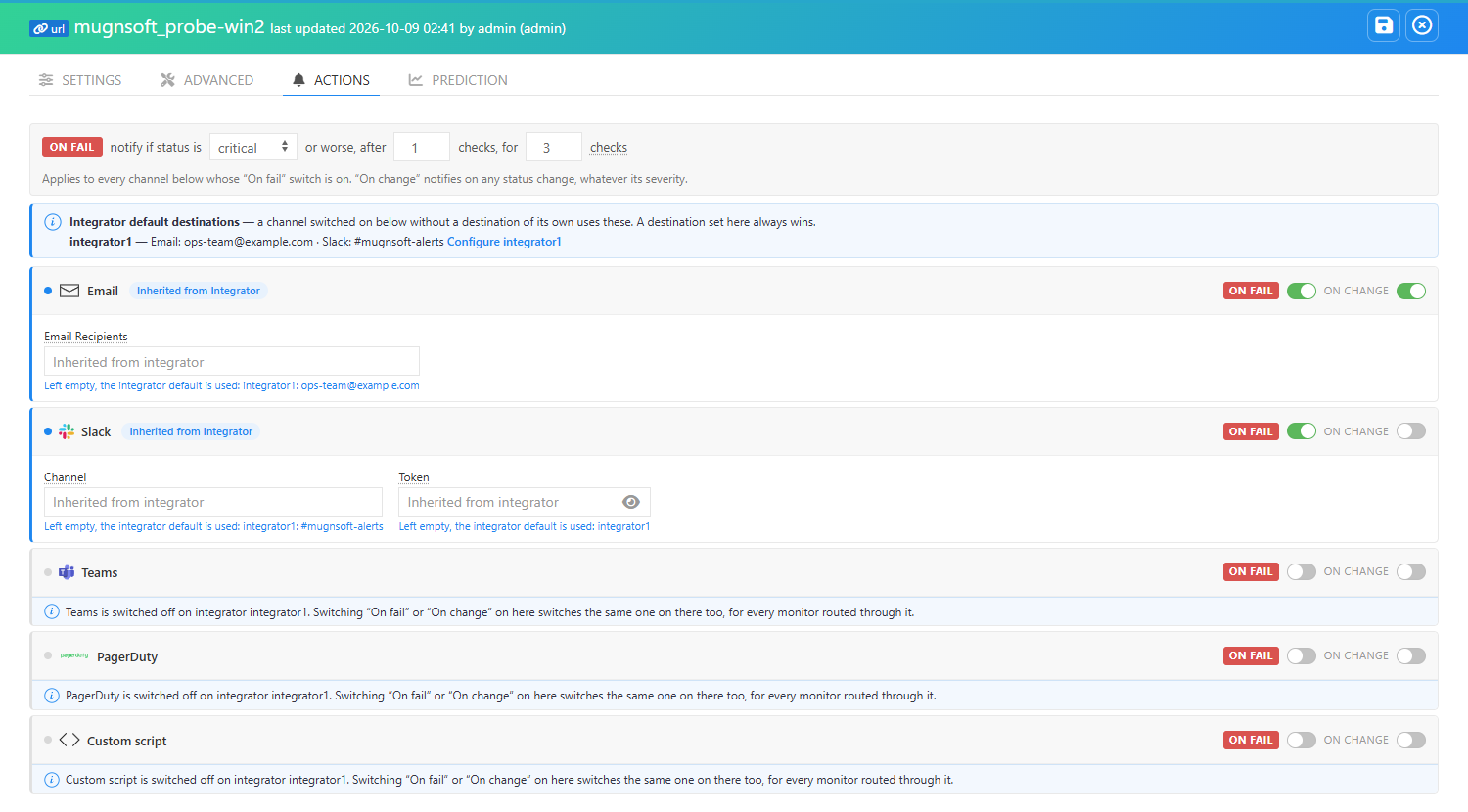
- The On fail bar at the top is the rule for the On fail trigger: which status, after how many checks, for how many checks.
- Each channel card has its own On fail and On change switches, and the destination fields once a switch is on.
- The blue banner lists the default destinations of the Integrator(s) the monitor is routed through. A field left empty shows Left empty, the integrator default is used.
Which Integrator a monitor uses
A monitor reports through the Integrator(s) of its probe: right-click the probe, edit server, block Integrators & notification resilience. With several endpoints, each one applies its own switches and defaults, so an alert switched on in two Integrators is sent twice.

A probe with no Integrator endpoint sends its alerts itself, with the same rule; that setup is not covered here.
What the monitor form tells you
The Actions tab checks the Integrator(s) the monitor is routed through and says so when an alert would not leave:
| Message on a channel card | Meaning |
|---|---|
| Inherited from Integrator (blue badge) | The channel is on and uses the Integrator’s default destination. |
| … is switched off on integrator … | Condition 1 is not met. As an admin, switching the channel’s trigger on in the monitor also switches it on in the Integrator, for every monitor routed through it (a toast confirms it). |
| Email notifications are unavailable: SMTP is not configured … | Condition 5 is not met. Configure SMTP opens the Webserver settings. |
| An empty destination with no default | Nothing is sent on that channel until you fill it in, here or as the Integrator default. |
Channels
| Channel | You need | Page |
|---|---|---|
| An SMTP server, set once in the Webserver settings | ||
| Slack | A Slack app with a bot token (xoxb-…) and a channel |
Slack |
| Microsoft Teams | A Workflows webhook URL for a channel | Microsoft Teams |
| PagerDuty | An Events API V2 integration key on a PagerDuty service | PagerDuty |
| SIGNL4 | The team secret of a SIGNL4 team (inbound webhook) | SIGNL4 |
| Custom script | A script in the Integrator’s scripts folder |
Custom script |
What every alert contains
All channels carry the same content, built by the Integrator:
- A headline, used as email subject, Slack/Teams title, PagerDuty incident title and SIGNL4 alert title:
[CRITICAL] web-shop · Execution time: 5.8 s · probe-paris, or[RESOLVED] web-shop is back to OK · probe-parison recovery. - The facts: monitor, type, status and how long it has lasted, target, probe and location, time of the check.
- A Locate in 3D view link that opens the monitor in the Webserver (Slack, Teams, email; PagerDuty as the client link).
- Why you receive it: this monitor notifies when its failure rule is met (On fail) or this monitor notifies its status changes (On change).
Delivery and retries
- Each notification is tried 3 times (with 1 s then 2 s pauses). If it still fails, the Integrator writes it to its
notif_bufferfolder and retries it every 30 seconds for up to one hour. A newer alert for the same monitor and channel replaces an older one waiting there. Size of the buffer: Notif. buffer size in the Integrator settings (500 by default). - Scripts are run once; a failed run is not retried.
- Notifications are sent in the background: a slow mail server or webhook never delays the checks.
See Integrator → Notification Buffer for the details.