Overview
In this section you will learn what Mugnsoft Pulse does and find your way around its main screens.
What Pulse does
Mugnsoft Pulse turns a user journey on a website into a replayable scenario. It is based on the Selenium IDE project model, so scenarios are saved as .side project files containing tests, suites and their commands.
With Pulse you can:
- Record a journey by using the site normally in the Pulse browser window
- Play back a test, or step through it one command at a time, at an adjustable speed
- Organize tests into suites and run a whole suite in one go
- Schedule suites to run automatically and keep a performance history for each test
- Notify your team when a scheduled run fails or crosses a threshold
- Export tests as code, or publish them as scenarios for the EUM Monitor
The features available depend on your license tier; see License activation.
How Pulse fits in the platform
Pulse is where scenarios are built; the Monitor probe is where they run in production. A typical workflow is:
- Record and fine-tune the journey in Pulse
- Replay it until every step passes reliably
- Publish it to Mugnsoft as a scenario for an EUM monitor
- Let the monitor execute it on its schedule and report transaction timings and availability
The project picker
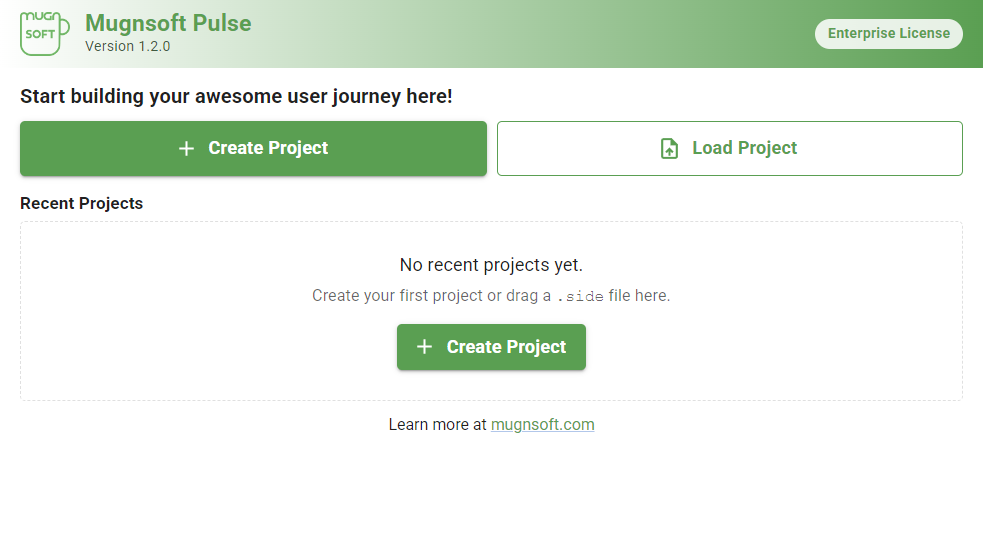
When Pulse starts, it opens the project picker. Create a new project, load an existing .side file, or reopen a recent project. The badge in the top-right corner shows your license tier, and the version number is shown under the product name.
The Tests view
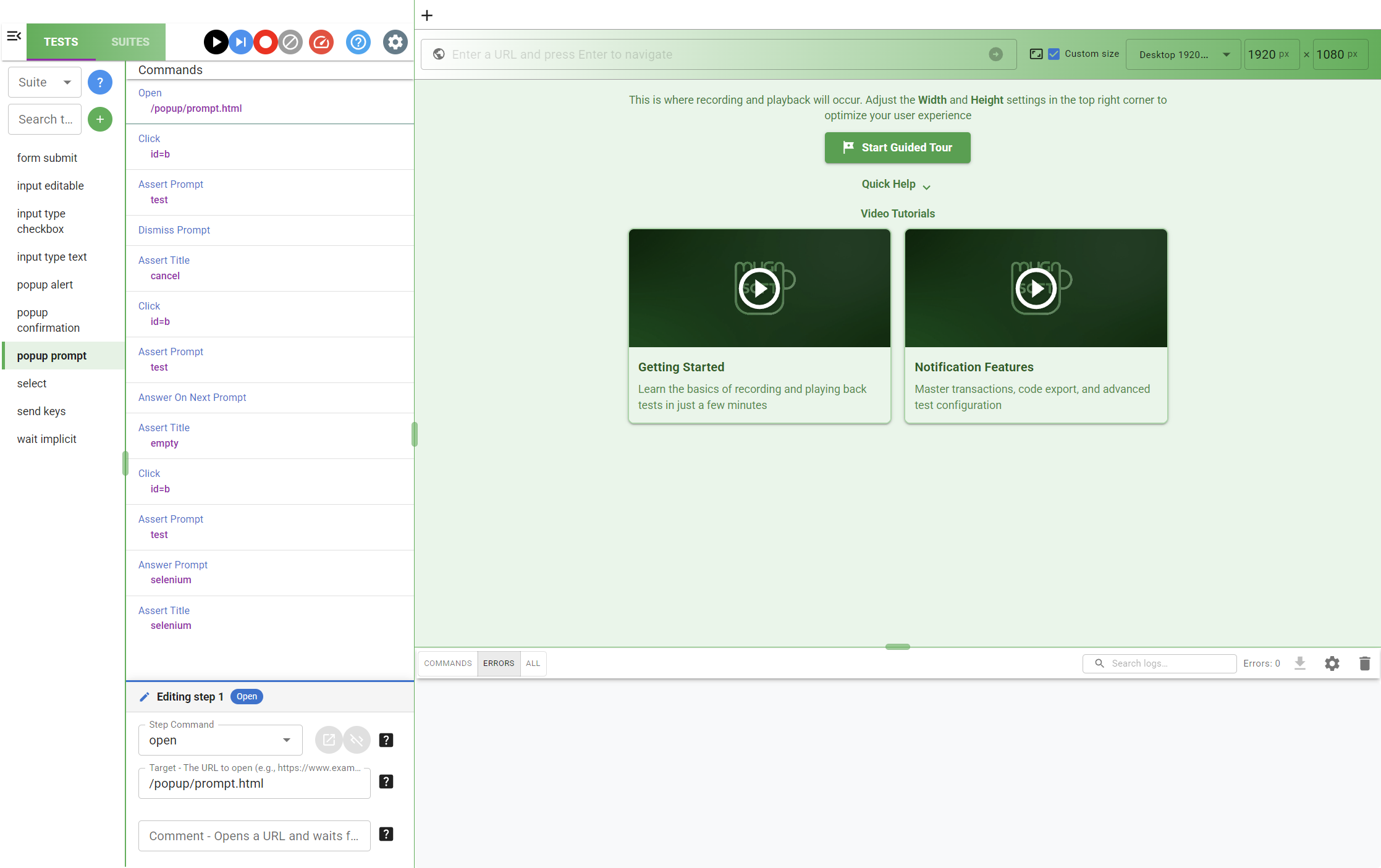
The Tests tab lists the tests of the project on the left. Selecting a test shows its commands, and selecting a command opens it in the step editor below the list, where you change the command, its target and its value.
The toolbar above the list runs the selected test, steps through it, starts recording, and sets the playback speed. The right-hand panel is where the browser used for recording and playback appears; the width and height fields at the top set its size, and the log panel at the bottom shows the commands executed and any errors.
The Suites view
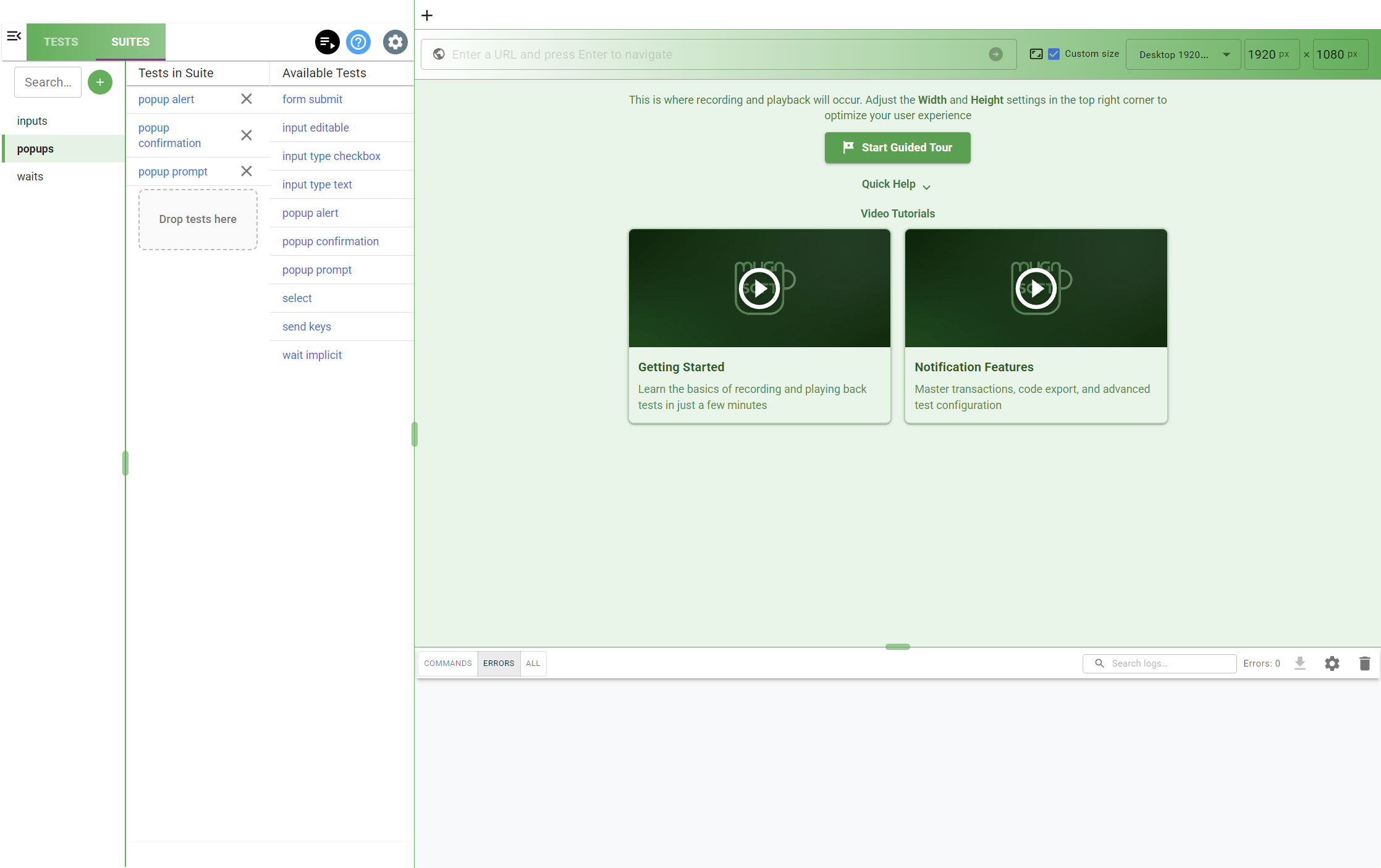
The Suites tab groups tests into suites. Select a suite on the left to see the tests it contains, and drag tests from Available Tests into it. The button in the toolbar plays the whole suite.
Note:
See also
- Installation — download, verify and install Pulse on Windows
- License activation — free and paid licenses, tiers and offline use
- EUM Monitor — how recorded scenarios are executed in production